When modelling in Blender, I often find myself in situations where I need to quickly attach something like a handle to a mesh. For this, I would obviously use a Boolean modifier. However, there is a problem: it does not have a built-in function to generate a chamfer where the meshes intersect.
This feature is often desirable when modelling for 3D printing, since joints with a chamfer should be stronger, and more printable with some printing technologies.
Previously, I would apply the Boolean modifier and then use sculpting tools to smooth the merging line manually. However, this is quite inconvenient, and it also destroys the original meshes. If I later want to relocate the handle, I have to start over from a copy.
To avoid this unnecessary work, I tried to create the chamfer using Blender Geometry Nodes. After some experimentation with several different setups I get useful results.
Main idea
Merge the object and the handle into a new object.
Add a tube along their intersection line.
Intersect the tube with the new object.
Create a convex hull from the two lines where the tube intersects the new object.
Merge the convex hull with the new object.
Steps 2 and 3 can be repeated multiple times to create a smoother transition between the object and handle instead of a simple chamfer (but this is not implemented in this example node tree to keep it simpler).
Geometry nodes modifier is added to main object. What object should be used as handle, and chamfer size, is chosen by user in modifier meniu.
Node tree
1. Offset object surface
This first step is not strictly necessary. But it seems, that sometimes Blender produce cleaner geometry if generated chamfer not sits directly on surface. Therefore, the node tree has a user-selectable option (in step 3) that offsets the main object’s surface inward (thanks for Sergej for this idea) by small value, before intersecting it with the tube. That way generated chamfer goes slightly below object surface.
2. Merge object with handle
Merging original or offseted object with handle.
3. Separate intersection contour
This done in separate step, so the user can chose if he want faster merging, or possibly slower, but with better geometry sometimes.
Notice that I used a “Menu Switch” node instead of a simple “Switch” node. According to the Blender documentation, with a “Menu Switch”, the unused branch is not evaluated, unlike with a “Switch” node. Interesting why is that 🤔? Probably for some technical reason.
4. Add tube at intersection line
There is also some nearby vertex merging, and possible curve resampling. That should help fix errors if geometry is dense at intersection. Thou i don’t no if that always bring better results or sometimes have opposite effect.
In this step, by changing tube radius, user can chose size of chamfer.
5. Intersecting with tube
Extracting two circular contours, where object merged with handle, intersects with tube.
6. Creating convex hull
Creating convex hull, from those two contours.
7. Merging everything
Merging convex hull with object and handle.
Chamfer is finished!
Limitation
However, this method has some shortcomings. Since the chamfer is generated as a convex hull, it does not correctly follow the surfaces if the main object or handle cross-section at intersection is not convex polygons.
Next time, I will show how to create a more complex node setup that works with arbitrary surfaces.
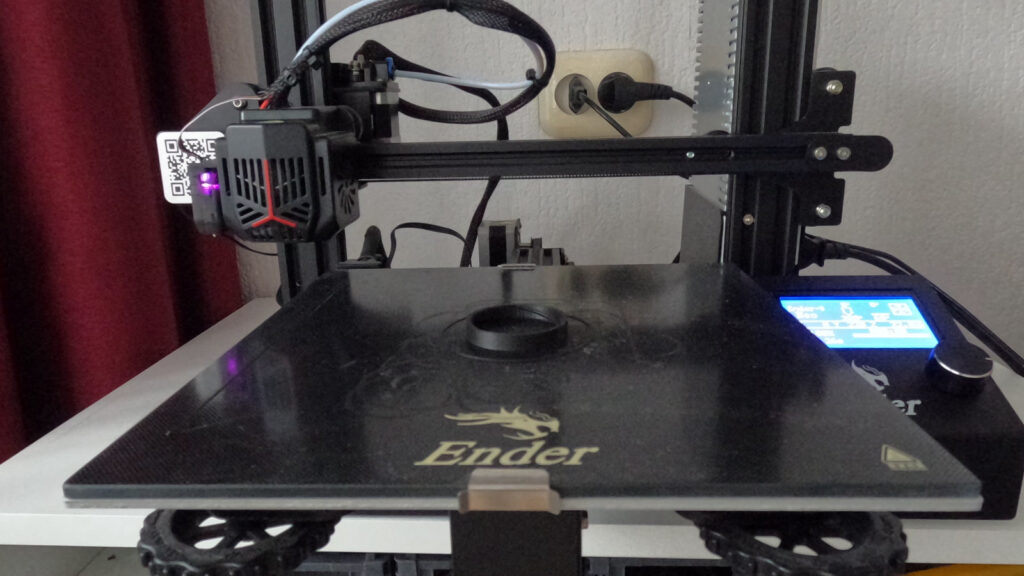
As everybody knows, the best way to join things in the world is with screws. Therefore, this post will be about modelling threaded parts in Blender for 3D printing. Printing threads directly is often more convenient and cheaper than gluing in threaded inserts or cutting threads manually after printing. However, I make no claims about their strength. Also it maybe impossible to print very small screws, depending on printer’s resolution.
In Blender it is easy to model any standard or costume screw of any profile, any number of threads, left/right handedness, etc., … Imagiganation is the only limit.
Notice: actually i don’t know if there is some official way “how to model screws in Blender”, and too lazy to google that. So i describe my own method, that i used with older Blender versions, and adapted, as Blender gained new functionality. With this method, it is easy to modify any screw parameter later and reprint the part if the first attempt does not fit.
As an example i show how to model very useful thing – cylinder that screws on plastic 5 litre water container.
Measuring
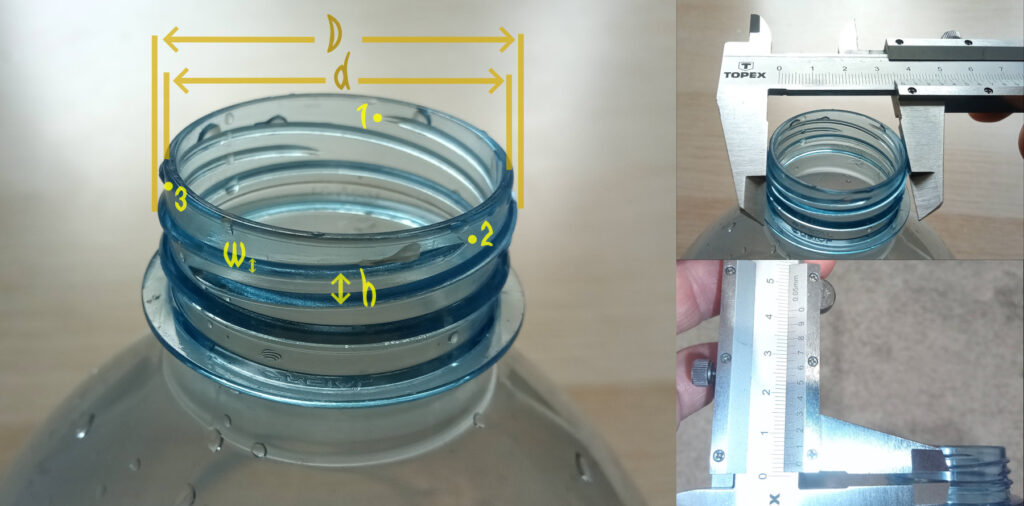
What to measure. Numbers indicate three threads.
First step is to measure existing bottle neck threads. For this task, I used a caliper, but a simple ruler would probably be enough. Basically it is sufficient to measure 4 dimensions:
d – Bottle neck diameter without threads (it can be measured at very top of neck, since there is some distance before threads starts).
D – Bottle neck diameter with threads.
h – Distance between centres of consecutive threads (step).
w – thickness of the thread (how wide is thread near the bottom).
Measurements do not necessarily have to be very precise, they can be rounded up (we don’t try to make some vacuum sealing cap). Probably only h should be more accurate, since if it drift in any direction, it wouldn’t be possible to fully screw printed part on existing bottle neck, especially if it is long.
Also it is useful, to notice how many threads bottle have (n). While ordinary bolts usually have single thread, things like large water bottles or jars somehow have more. In this case there is three.
Modelling
Basically, two parts are needed: the thread and the cylinder. Both can be modeled using the same principle: first, draw a 2D profile in mesh edit mode, then “lift” it into 3D space using modifiers.
Thread modelling
So lets begin by drawing 2D thread profile.
Add simple plane with diameter equal to d that is aligned to front view.
Subdivide that plane.
Delete all vertex except one vertex at the right.
Draw 2D profile of the thread, by extruding that one vertex that was left.
Ideally drawing should follow real profile, but since we modelling loose screw, it is allowed to use some imagination. As you can see in the image, i modelled upper side of profile (that corresponds to hanging side of thread ridge) slanted, so it can be printed without supports. Luckily, this matches reality quite well. It is visible to the naked eye that one side of the bottle-neck thread is also slanted, while the other side is mostly flat. The drawn profile should be made slightly larger than the measured dimensions to provide a better fit.
Now we can “screw” it to 3D space by adding necessary modifiers:
1. Screw modifier (obviously)
Angle: 360° / n
Or full circle divided by number of threads. If there is 3 threads, than angle will be 120°
Screw: h
Or distance between centres of consecutive threads. Use negative number for left-handed screws.
Iterations: 7
That depends on how long you want the screw to be. Increase this value until the generated thread height exceeds the required screw length.
Axis: Z
It is Z axis if profile is modelled in front view, and there is no additional rotation transformation.
Steps: 22
More steps – larger resolution. I chose 22 – that is mostly random.
Normals > Calculate order
This checkbox must be checked, since our thread profile is mesh.
Normals > Smooth shading
This can be unchecked for clearer visibility.
2. Geometry nodes – fill endings
After the Screw modifier, the thread is already visible. However, its ends remain open. Since non-manifold meshes can interfere with later Boolean operations, the ends need to be capped. I use a simple Geometry Nodes setup to do this.
It extrudes open edges (that have only one face attached), and then merge vertexes in them by distance – effectively closing those holes. This works, since endings of thread is far away from each other, and thread profile is convex polygon. If those conditions is not met, we should use some more sophisticated node setup.
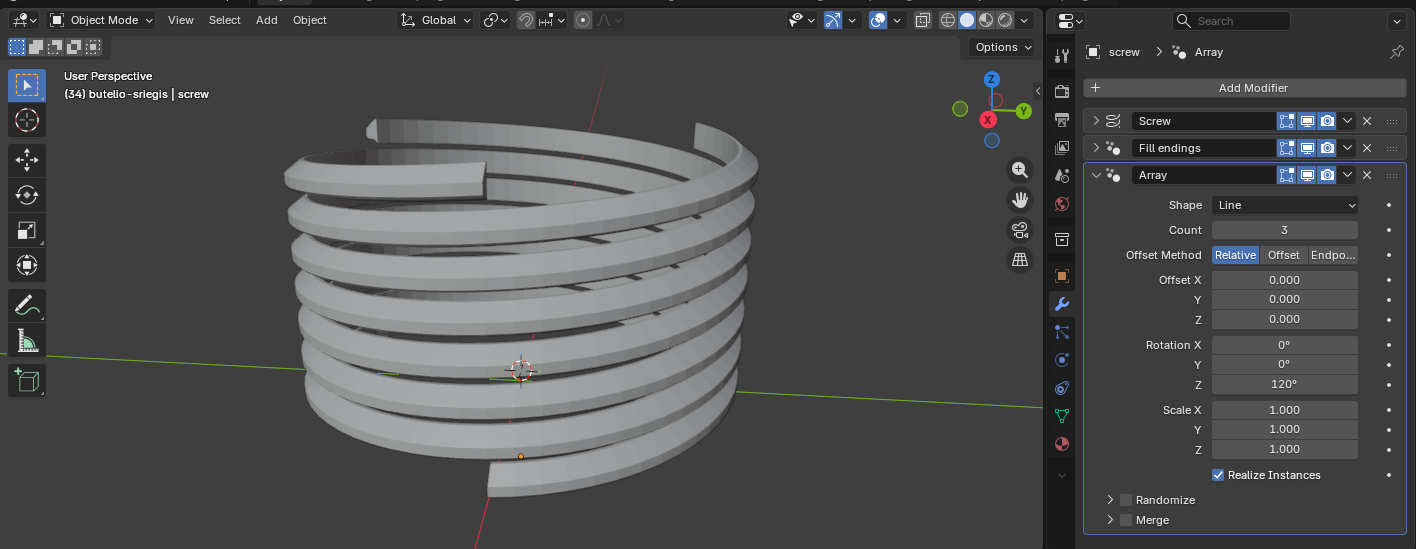
3. Array modifier
This required only, if screw have more than one thread.
Count: n
Number of threads on screw. Three for our case.
Offset: 0
Zero to all axes.
Rotation: 360° / n for Z axis (120° for our case), 0° for X and Y.
Scale: 1 for all axes.
In older Blender versions, array modifier was much more limited, and don’t have the rotation capability, so in that case it is possible to use “object offset” with rotated empty object, or just create two linked copies of thread profile, and rotate them manually by 360° / n.
Cylinder modelling
Our threads is finished! Its time to create cylinder. For this task we basically use the same method as for threads: start from plane and draw cylinder profile. Internal side of profile can be slightly enlarged, and lower side is slanted for better bottle neck insertion and to accommodate enlargement of bottom layer when printing part with cheap FDM printer.
When 2D cylinder profile is finished, we can add modifiers to it.
1. Screw modifier. Again. This time with different parameters.
Angle: 360°
Full circle.
Screw: 0
Since we making cylinder, not screw.
Iteration: 1
Since we making closed cylinder.
Steps: 66
Since there is 3 threads, it is probably best to use x3 times number that we used in thread modifier (22), to create consistent geometry.
Normals > Calculate order
This checkbox must be checked, since our thread profile is mesh.
Normals > Smooth shading
This can be unchecked for clearer visibility.
Normals > Flip
For some reason, flipping normals directions sometimes helps prevent Boolean modifier errors later, such as strange steps in the thread groove.
2. Boolean modifier
This modifier will engrave thread on inner cylinder wall.
Operation type: Difference
Object: Object of threads, that we created earlier.
Solver: Manifold
This should work since our cylinder and threads counts as manifolds, if everything done correctly. If for some reason it is not working, or if we modelling in earlier Blender version, it will be fine to use “Exact” solver instead.
3. Weld modifier
It is not absolute necessary, but it fixes duplicated vertex that boolean modifier sometimes mystically produce. Just set distance, to very small value, to avoid accidentally merging some innocent vertexes.
The End
And that’s it, our threaded tube is finished! Now we can print it and make some bottle hourglass, since it somehow screws onto both ends, even though the thread profile is not symmetrical in reality 🤔.
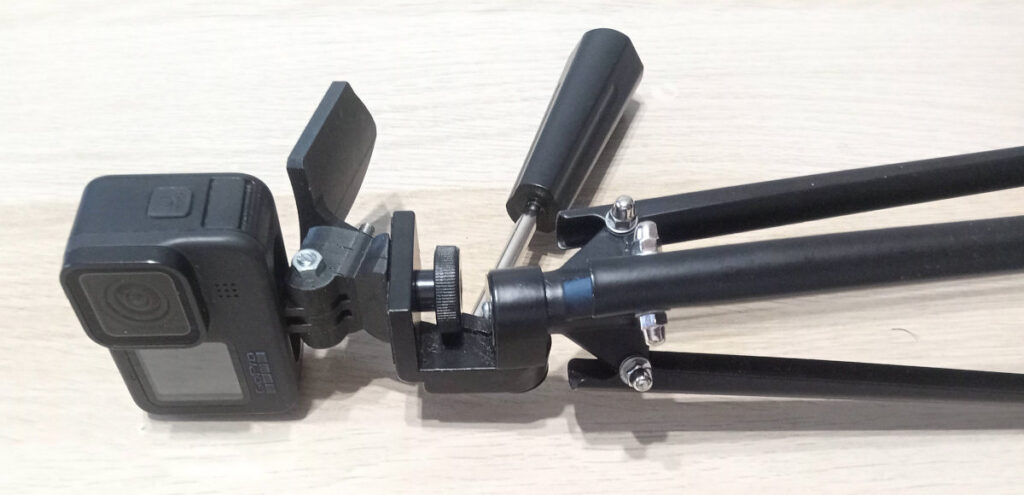
Additional note: Not saying, that this bottle cap is not useful, just want to pay attention that same modelling principles apply to any other threaded parts, like for example adapter for mounting go-pro camera to standard tripod.
Recently, I was trying to visualize some earmolds in Blender. For those who don’t know – Earmolds are like ear plugs that goes to ear and direct sound from hearing aid to ear canal. Often they made from transparent materials with sound tubes running through them. For those tubes, naturally i used beveled Bezier curves with solidify modifier. But there is a problem. For realistic results, earmolds must have bore, that exactly follows sound tube. And that is awful lot of actions to create that, like: duplicate curve, remove „solidify“ modifier, turn on „fill curve caps“, convert curve to mesh, select it in earmold boolean modifier for subtraction. Luckily there is solution to avoid that pointless clicking’s: to make custom modifier using Blender geometry nodes.
Ok, I am not an expert of that (and don’t even try to consult AI, since last time it wasn’t very helpful – constantly mixed Blender versions, and talk about nodes that don’t exist at all). But by some trial and error, and luck, my geometry node tree is somehow working as intended.
So the actions, that node tree must perform to automatically create a bore in earmold that follows Bezier curve (that represents tube) is something like this:
1. Input tubes geometry
Just simple „object info“ node.
2. Delete rim
The idea was to delete edges where the angle between the connected faces is close to 0 degrees (since all faces in rim are in one plain, unlike any others faces on tube sides).
However, I wasn’t able to get this working, so I began experimenting with various random values and eventually achieved good results. For some reason it is like: delete faces around edges that have angle between those faces greater than 0.78 rad (45 deg)?
Maybe this setup picking steep angles on rim sides, but than it should work with values close to 90 deg, but it won’t 🤔. Can someone explain me what is going on there?
3. Delete inner tube surface
This is easy now, since when rim is deleted inner and outer surfaces are in separate mesh islands, so just delete island by index.
4. Fill tube endings
Closed mesh is needed for boolean mesh operations later. For this – just extrude those edges that have only 1 surface attached, and merge new vertex’s to one by using large proximity distance (effectively creating triangle fan filling).
And from now on, i call this generated mesh „bore“ instead „tube“.
5. Subtract that newly created bore mesh from earmold mesh
Also before this – bore mesh gets same material as earmold, instead one that is inherited from tube.
And its done! Now we can move tube as we want and bore automatically follows it.
Also we can use this geometry node setup for other things, like for example, visualizing some pipes inside glacier, or something.
Some strange bug spotted, it seems, that when I rotate object with my geometry nodes tree, and some additional modifier in viewport and shading is set to „rendered“, sometimes, generated bore endings „explodes“? Maybe my geometry nodes tree is rubbish. But after restarting Blender they goes back to normal 🤔.
Besides, this node setup was crated in Blender version 4.5.3 LTS.